
This is a guide on how to change name servers on a domain through the registrar portal. You can only do this, if the domain name is registrar managed by you.
It is only the portal users with the roles Name server manager and proxy that can change name servers on a domain name. It is also a requirement that a name server handle has been linked to the registrar portal.
For more informations and guide regarding these requirements, you can see the guide "Linked Whois handles on the registrar portal".
1. Log on to the registrar portal. The portal user must have the role Name server manager and proxy.
2. If the portal have the correct role you need to click on WHOIS SEARCH
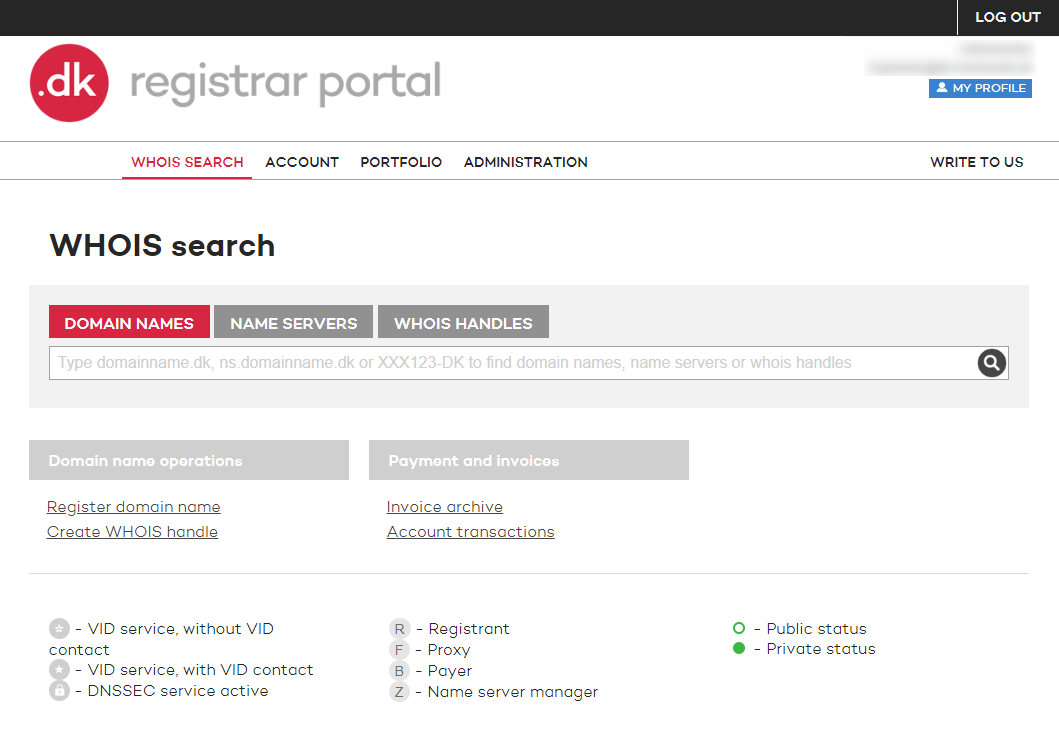
3. Under Whois search you can search domain names, name servers or Whois handles.
Enter the domain name under the search filter DOMAIN NAMES which you want to change name servers on. Click on the domain name.
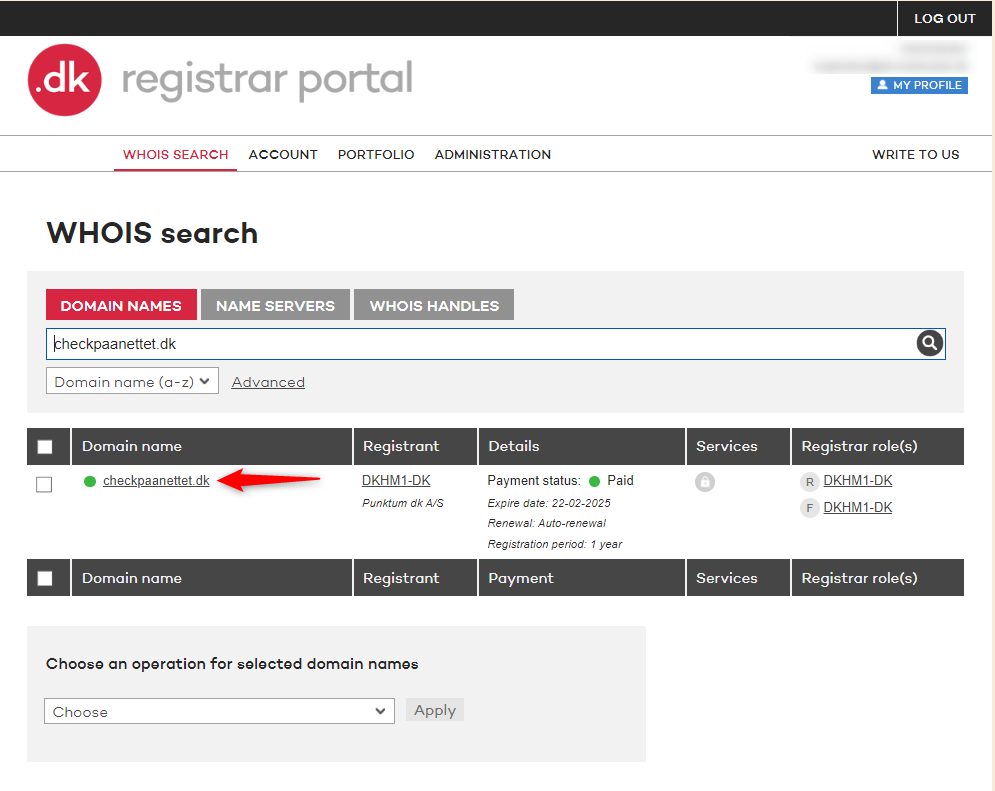
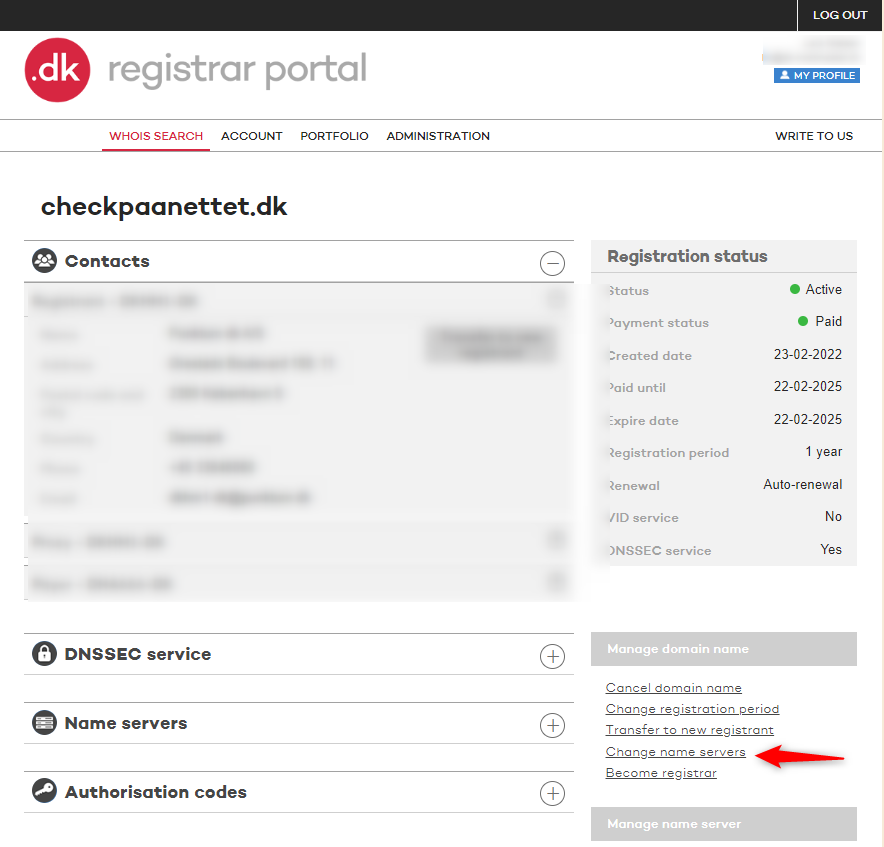
4. You now have an overview of the registration data for the specific domain name.
Under Manage domain name there will be listed all the allowed changes to the domain name through the portal user. Click on Change name servers
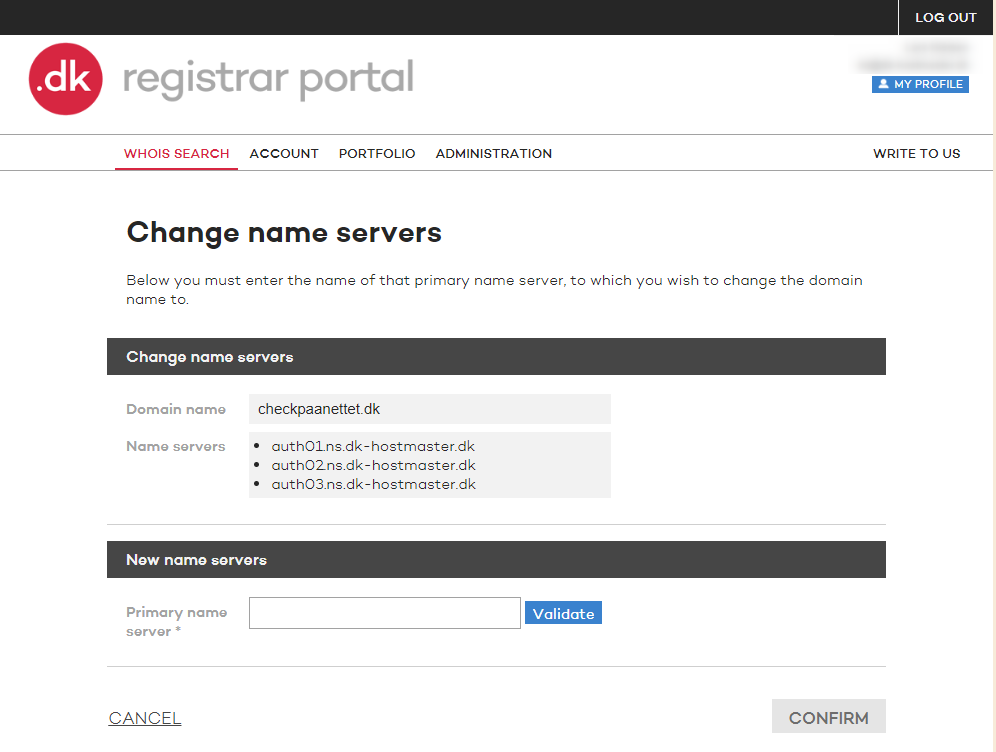
5. You will have an overview of the current attached name servers on the domain name.
You can enter one of the new name servers in the field Primary name server and click on validate.
If the name server is validated you will be able to click on CONFIRM after which the change of name servers will accour.
Thank you for your reply
- we are happy about that.
Hmmm, not good...
We will help you - write us.
Did you find the answer useful?
If you still have questions, we are ready to help!