Customer Service

Find help and answers to questions about your .dk domain name. Here, you can contact customer service and find guidance on registrar management, rules, and documents.

Self service

Log in to the self-service portal to view your .dk domain names and details.

Log in to the self-service portal

Questions about your invoice?

Find help regarding your invoice and payment for your .dk domain name.

Get help with invoicing

Help with ID verification

Get guidance on completing the ID check for your .dk domain name.

Get help with ID verification

Is your domain name suspended?

Read about suspension and how to get your .dk domain name restored.

Read about suspension

Choose a registrar for your .dk domain name

Going forward, your .dk domain name must be managed by a registrar. If you haven’t chosen one yet, this guide will help you through the transition, step by step.

See how to choose a registrar
Find forhanlder til dit .dk-domænenavn

If you do not have your password, you can click "Help with login" and have a temporary password sent to your registered e-mail address.

Remember that you can also log in with your MitID if you have previously connected it with your profile.

If you have not previously connected a MitID, and you cannot receive login information on your current contact email with us, then do the following:

As a company:
You need to make sure that the e-mail address you have provided in the CVR register is updated to an active e-mail to which we can send login information. We must be able to see the e-mail address by public posting on CVR under "Extended company information" at https://datacvr.virk.dk/
Afterwards you must call us and inform us that you have updated your e-mail address.

As a private registrant:
You must call our customer service (33 64 60 60) from your specified contact number and have the contact email updated.
 
If none of the above is an option, you can read more here

You must transfer the domain name if you want to give it to another person.

Please note, that you cannot transfer the domain if there is an unpaid invoice on the domain name. Please pay the invoice and then you can transfer the domain name.

When you have transferred the domain name you no longer have the right to use it.

Step 1

Choose "Transfer to new registrant" in the drop-down menu in the "Manage" column.
PLEASE NOTE! If you wish to transfer more than one domain name, you can find it under "Manage multiple domain names" at the bottom of the screen.

Step 2

Enter the e-mail address of the new registrant who is to have the domain and press CONTINUE.

Please be aware that, if transferring to a company, the email address provided will be published in the publicly accessible WHOIS database.

Therefore, the email address must not contain any personal information such as names or initials.

If your email address contains personal data, it must be changed via Punktum dk’s self-service portal or at your registrar.

Step 3

Make sure you entered the correct information and press CONFIRM.

The new registrant of the domain names will receive a request by e-mail to accept the transfer. The transfer will not be carried out until the new registrant has accepted.

PLEASE NOTE! If you are only proxy of the domain name the current registrant must confirm the transfer of the domain name before it can be carried out. The current registrant will receive a request by email. Once the current registrant has confirmed that the transfer may be carried out the future registrant will receive an email with a request to accept the transfer. When the future registrant has accepted the transfer it will be carried out.


Punktum dk cannot register cancellation of a .dk domain name on behalf of a registrant when contacting customer service.

If you want to cancel the right to use a .dk domain name, you must do so via the self-service portal, se below how. Always cancel the domain name before paying the invoice on which it is billed.

Once you have cancelled the domain name, it will be suspended on the date from which you wish the cancellation to apply. The domain name is deleted after 30 days’ suspension.

Please note, that the cancellation is associated with a fee. See the current price in our price list. If you cancel your .dk domain name when it expires, you do not have to pay a cancellation fee.

The following applies:

  • If the cancellation fee exceeds a possible receivable, the remaining cancellation fee does not have to be paid.
  • If you have received an invoice for the domain name you want to cancel, you do not need to pay it.

If you have only canceled some of the domains on the invoice, you will not receive a new invoice afterwards. After the cancellation of the domain, you will receive a credit note if there is an open invoice on the domain. You can then pay the remaining amount at our self-service, where the invoice amount will be adapted automatically. Alternatively, you can deduct the amount in a manual bank payment.

When you cancel the registration of a domain name, it will afterwards be free to register for others.

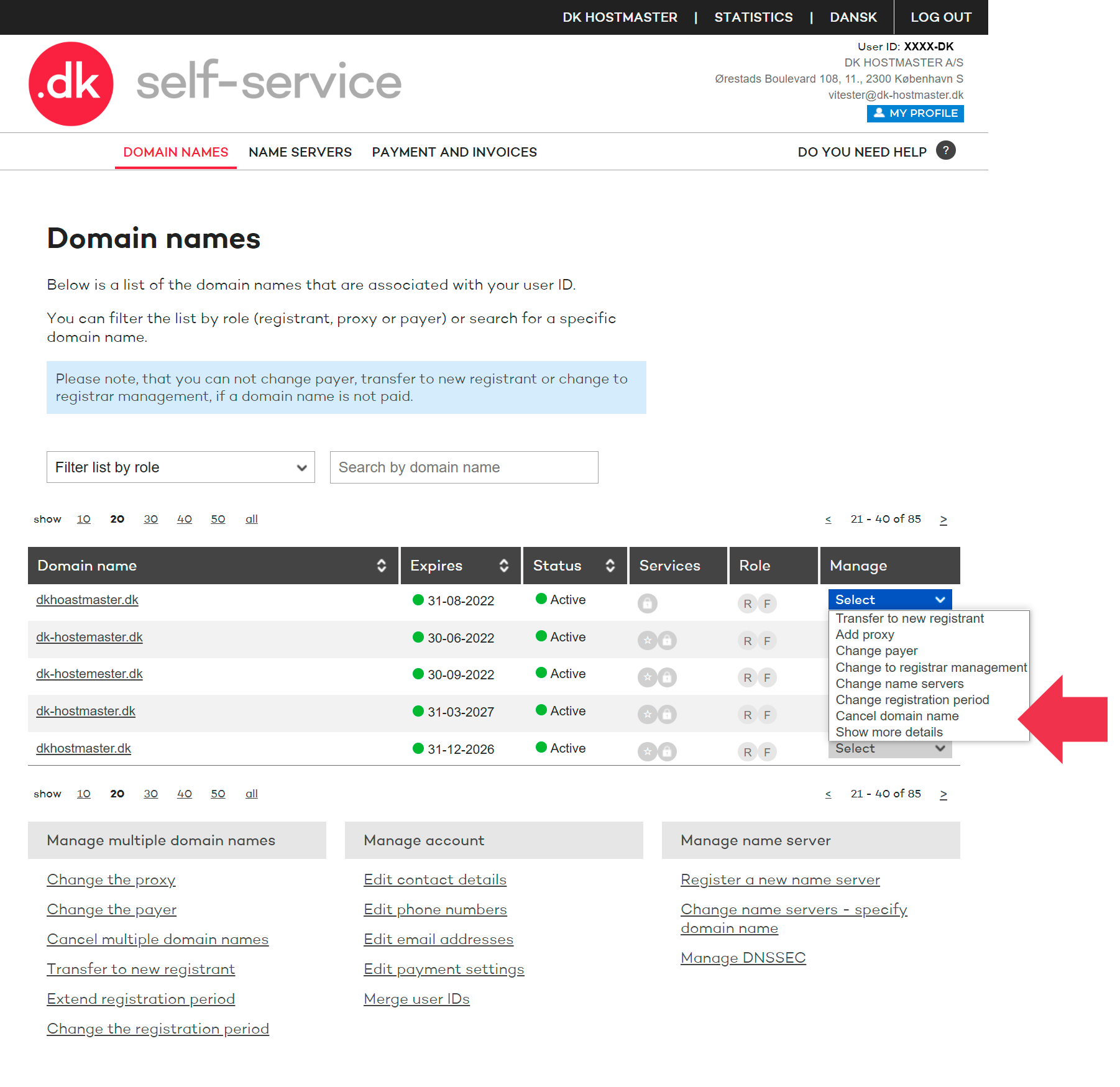
Step 1

Choose "Cancel domain name" in the drop-down menu in the "Manage" column.

PLEASE NOTE! If you wish to cancel more than one domain name, you can find it under "Manage multiple domain names" in the bottom of the screen.
Cancel 1

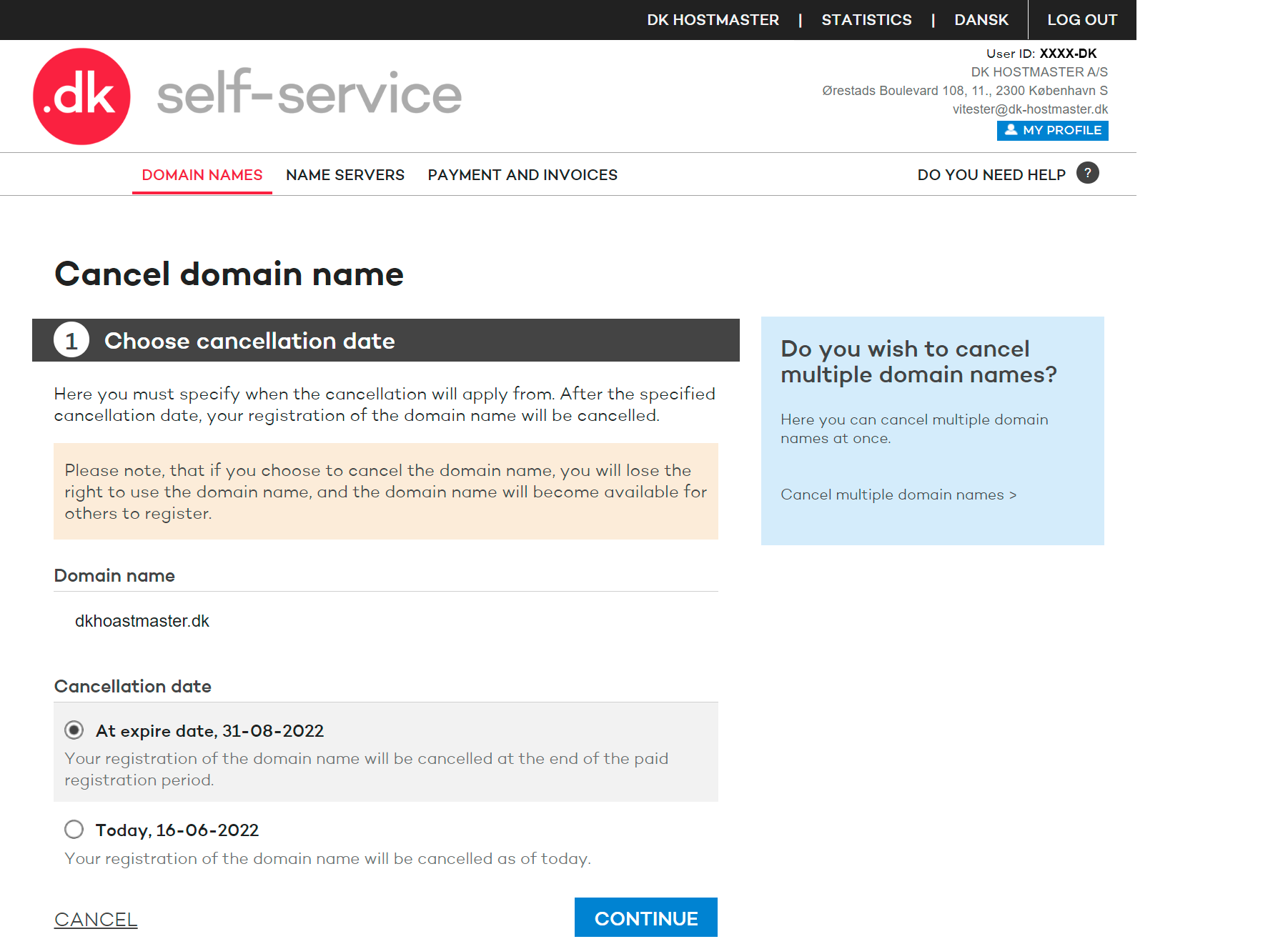
Step 2

Select the date you wish the domain name to be cancelled. Press CONTINUE.
Cancel 2

Step 3

Choose CONFIRM to cancel the domain name.

PLEASE NOTE! If you are only the proxy of the domain name, the registrant must confirm the cancellation of the domain name before it can be carried out. The registrant will receive a request pr. email.


Is your domain name registrar managed?


It is not possible to cancel the domain name yourself if your domain is registrar managed by your current provider.

To cancel your .dk domain you must contact your registrar.

You can read more about registrar management here

If you wish to edit the contact information related to your user ID please use the section "MY PROFILE" in our self-service.

Step 1

Select "MY PROFILE" in the upper right corner of our self-service.

Step 2

Press the button "Edit" below the specific section to change the address, phone number or email address.

Step 3

If you edit your email address you must confirm the change via a link we send to the new email address. The title of the email is "Confirm update of primary email address" or "Confirm update of secondary email address".


Please be aware that the email address provided will be published in the publicly accessible WHOIS database.

Therefore, the email address must not contain any personal information such as names or initials.

If your email address contains personal data, it must be changed via Punktum dk’s self-service portal or at your registrar.


PLEASE NOTE! If you cannot edit your address on our self-service is it because your contact information is locked and validated towards the Danish CVR- or CPR-register. If you move, we automatically update your address. If your address is not correct in our system, you must therefore change it in the CVR- or CPR-register.

If you wish to change the name or company name you must transfer the domain name. You can see a guide under "How do I transfer a domain name?".


When you log into the .dk self-service, you can link your MitID to your Punktum dk login. Once you have done this, you can log in to self-service with your MitID.

Step 1

Select the tab "Log in with MitID / NemID" and select "Log in with MitID".

Step 2

Log in with your MitID username and your MitID app.

Step 3

Log in with your Punktum dk user ID and self-selected code.

Depending on whether an ID check has already been carried out or it is not required to carry out an ID check, there are three different paths.

Step 4A if required to complete an ID check.
Steps 4B - 5 if you have already completed an ID check.
Step 5, if it is not required to complete an ID check and you only want to associate your MitID with your Punktum dk user ID.

Step 4A

If you are required to complete an ID check, but you have not completed it yet, you will be sent to an ID check. There you must log in with MitID again, and you must also enter your CPR number. Select "LOG IN WITH MitID and CPR".

Complete the ID check and confirm that your information is correct. After this, your MitID is linked to your user ID, and it can be used to log in to .dk self-service.

Syep 4B

If you have already completed an ID check, you must log in with MitID again and enter your CPR number.

Step 4B - 2

Log in with your MitID again.

Step 4B - 3

Enter your CPR number.

Step 5

Confirm association of MitID.

Need help?

Didn't find the answer to your question? Contact customer service, and we will help you further.

Contact customer service
Kontakt kundeservice global

Customer service is open

Monday 09:00 - 16:00
Tuesday 09:00 - 16:00
Wednesday Closed
Thursday 09:00 - 16:00
Friday 09:00 - 13:00

If you need help or have questions, please contact us, and we will get back to you as fast as possible. 

Other contact options

You can also get in touch calling us +45 33 64 60 60, alternatively we can call you back as soon as we are available again.

Customer service is closed

Monday 09:00 - 16:00
Tuesday 09:00 - 16:00
Wednesday Closed
Thursday 09:00 - 16:00
Friday 09:00 - 13:00

If you need help or have questions, please contact us, and we will get back to you as fast as possible.