Customer Service

Find help and answers to questions about your .dk domain name. Here, you can contact customer service and find guidance on registrar management, rules, and documents.

Self service

Log in to the self-service portal to view your .dk domain names and details.

Log in to the self-service portal

Questions about your invoice?

Find help regarding your invoice and payment for your .dk domain name.

Get help with invoicing

Help with ID verification

Get guidance on completing the ID check for your .dk domain name.

Get help with ID verification

Is your domain name suspended?

Read about suspension and how to get your .dk domain name restored.

Read about suspension

Choose a registrar for your .dk domain name

Going forward, your .dk domain name must be managed by a registrar. If you haven’t chosen one yet, this guide will help you through the transition, step by step.

See how to choose a registrar
Find forhanlder til dit .dk-domænenavn

Punktum dk is the administrator of all Danish domain names.

Our three most important tasks are:

  • To maintain a database of all .dk domain names.
  • To ensure the reliable operation of the Danish part of DNS.
  • Works to strengthen the security on the Internet, so that everyone can have confidence in the .dk-domains.

Punktum dk is a private company owned by the Dansk Internet Forum (DIFO). All Danish domain names are a public resource. The task of administering these domain names is outsourced to Punktum dk and DIFO. Our business does not aim to generate profits for any shareholders. DIFO, on behalf of the Danish internet community, is a guarantee for secure, fair and affordable access to the internet.

You must transfer the domain name if you want to give it to another person.

Please note, that you cannot transfer the domain if there is an unpaid invoice on the domain name. Please pay the invoice and then you can transfer the domain name.

When you have transferred the domain name you no longer have the right to use it.

Step 1

Choose "Transfer to new registrant" in the drop-down menu in the "Manage" column.
PLEASE NOTE! If you wish to transfer more than one domain name, you can find it under "Manage multiple domain names" at the bottom of the screen.

Step 2

Enter the e-mail address of the new registrant who is to have the domain and press CONTINUE.

Please be aware that, if transferring to a company, the email address provided will be published in the publicly accessible WHOIS database.

Therefore, the email address must not contain any personal information such as names or initials.

If your email address contains personal data, it must be changed via Punktum dk’s self-service portal or at your registrar.

Step 3

Make sure you entered the correct information and press CONFIRM.

The new registrant of the domain names will receive a request by e-mail to accept the transfer. The transfer will not be carried out until the new registrant has accepted.

PLEASE NOTE! If you are only proxy of the domain name the current registrant must confirm the transfer of the domain name before it can be carried out. The current registrant will receive a request by email. Once the current registrant has confirmed that the transfer may be carried out the future registrant will receive an email with a request to accept the transfer. When the future registrant has accepted the transfer it will be carried out.


Punktum dk cannot register cancellation of a .dk domain name on behalf of a registrant when contacting customer service.

If you want to cancel the right to use a .dk domain name, you must do so via the self-service portal, se below how. Always cancel the domain name before paying the invoice on which it is billed.

Once you have cancelled the domain name, it will be suspended on the date from which you wish the cancellation to apply. The domain name is deleted after 30 days’ suspension.

Please note, that the cancellation is associated with a fee. See the current price in our price list. If you cancel your .dk domain name when it expires, you do not have to pay a cancellation fee.

The following applies:

  • If the cancellation fee exceeds a possible receivable, the remaining cancellation fee does not have to be paid.
  • If you have received an invoice for the domain name you want to cancel, you do not need to pay it.

If you have only canceled some of the domains on the invoice, you will not receive a new invoice afterwards. After the cancellation of the domain, you will receive a credit note if there is an open invoice on the domain. You can then pay the remaining amount at our self-service, where the invoice amount will be adapted automatically. Alternatively, you can deduct the amount in a manual bank payment.

When you cancel the registration of a domain name, it will afterwards be free to register for others.

Step 1

Choose "Cancel domain name" in the drop-down menu in the "Manage" column.

PLEASE NOTE! If you wish to cancel more than one domain name, you can find it under "Manage multiple domain names" in the bottom of the screen.
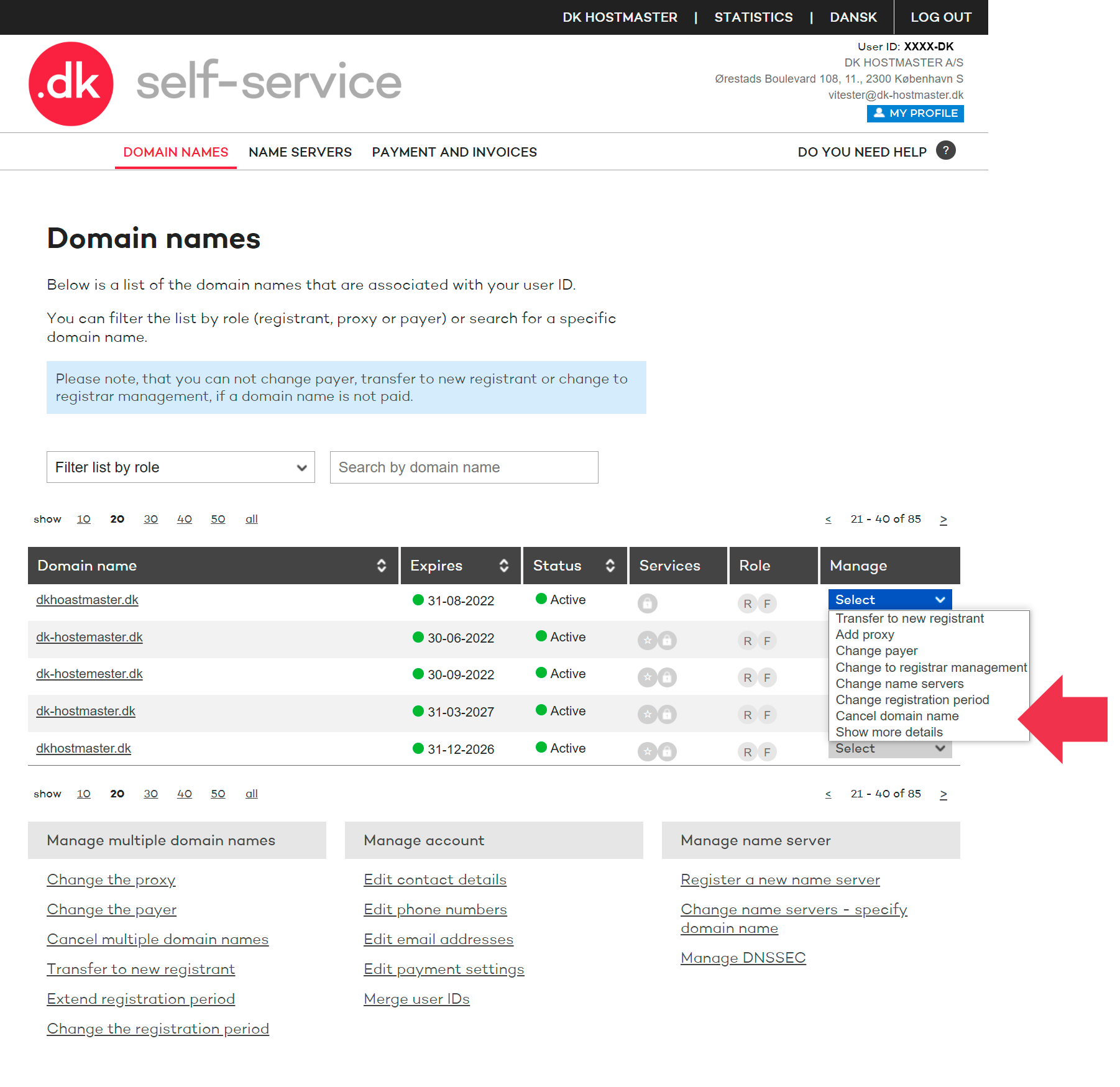
Cancel 1

Step 2

Select the date you wish the domain name to be cancelled. Press CONTINUE.
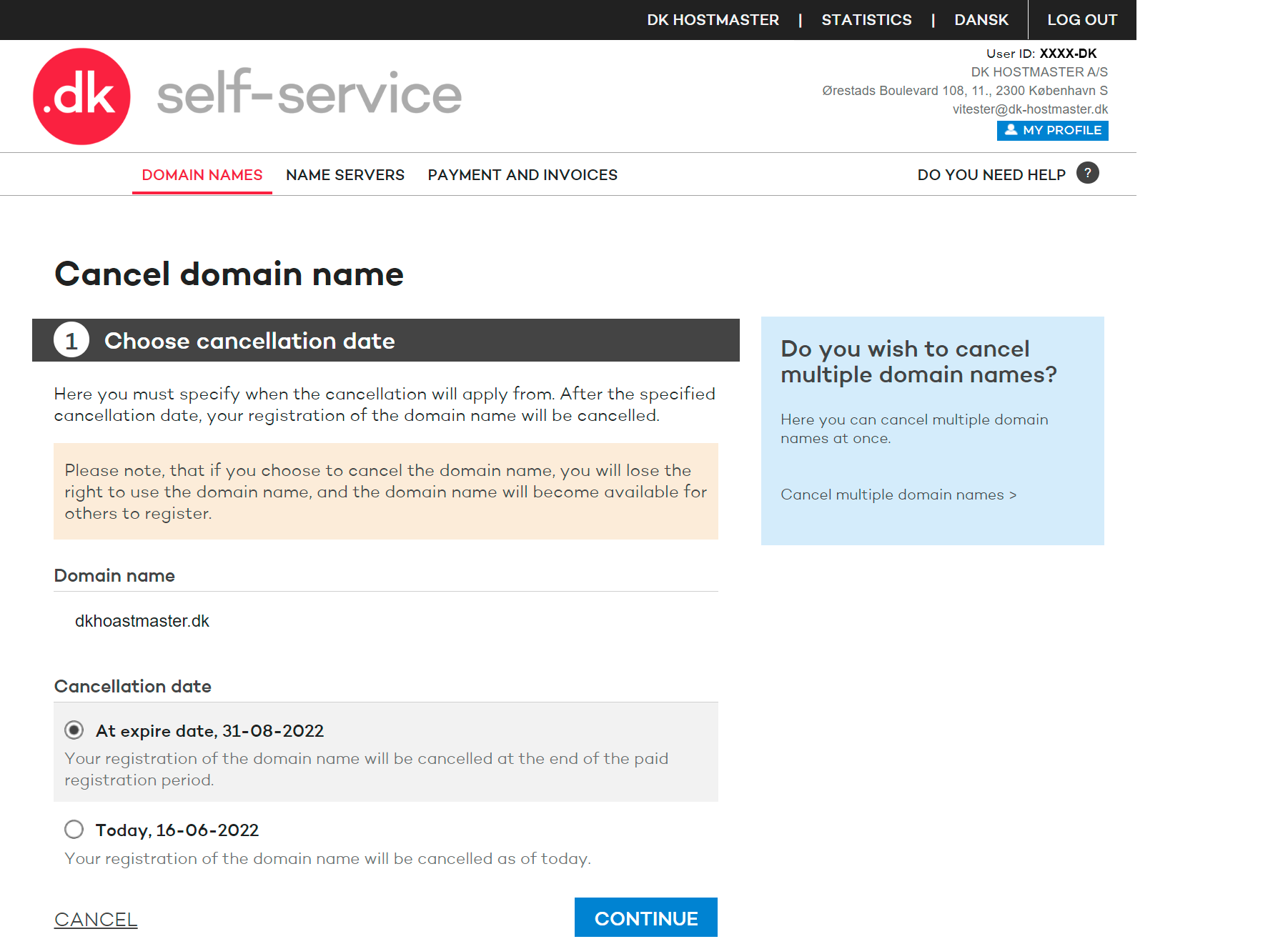
Cancel 2

Step 3

Choose CONFIRM to cancel the domain name.

PLEASE NOTE! If you are only the proxy of the domain name, the registrant must confirm the cancellation of the domain name before it can be carried out. The registrant will receive a request pr. email.


Is your domain name registrar managed?


It is not possible to cancel the domain name yourself if your domain is registrar managed by your current provider.

To cancel your .dk domain you must contact your registrar.

You can read more about registrar management here

If you want a different web hosting provider (nameserver provider), your domain needs to be moved to new nameservers. You should therefore contact your new nameserver provider, where you can change the nameservers in one of the following ways: 

  1. The new provider gives you the new nameservers, so you can change them yourself via our self-service portal. In this case, you can follow our guide below. 

  1. The new provider makes the change for you, and then you receive a request that you must approve via the self-service portal at Punktum dk. 

  1. The new provider asks you to retrieve an authorization code/AUTH-ID code – also known as an EPP code - via our self-service portal. Once logged in, go to the "Domain Names" menu, click directly on your domain name, and then select "Change Nameserver" under the "Manage Authorization Codes" section on the right side. Here you can generate a code that you copy and send to the new provider. 


Instructions for adding new name servers through self-service

Step 1

Find the domain name in the list of your domain names and tap it.

Step 2

Select "Change Name Servers" in the menu on the right under "Manage Domain Name".

Step 3

Enter the name of one of the name servers you wish to switch to. Click on NEXT.

Step 4

Check that the information entered is correct and click CONFIRM.


Are you experiencing an error 

If you experience errors when trying to change nameservers, you can check what the problem is via this page. You need to select "Show options" and enter the nameservers you want to troubleshoot under "Run." After running the test, it will tell you which configuration errors are preventing you from changing nameservers. You can copy the link to the page and send it to your nameserver provider so they can resolve the issue. 

Is your domain registrar managed? 

It is not possible to change nameservers yourself if you are registrar managed. To change providers under registrar management, you must retrieve a code via the self-service portal that you can give to your new provider. Through the self-service portal, select "Change Registrar" next to your domain name. 

You can read more about registrar management by clicking here. 


If you wish to edit the contact information related to your user ID please use the section "MY PROFILE" in our self-service.

Step 1

Select "MY PROFILE" in the upper right corner of our self-service.

Step 2

Press the button "Edit" below the specific section to change the address, phone number or email address.

Step 3

If you edit your email address you must confirm the change via a link we send to the new email address. The title of the email is "Confirm update of primary email address" or "Confirm update of secondary email address".


Please be aware that the email address provided will be published in the publicly accessible WHOIS database.

Therefore, the email address must not contain any personal information such as names or initials.

If your email address contains personal data, it must be changed via Punktum dk’s self-service portal or at your registrar.


PLEASE NOTE! If you cannot edit your address on our self-service is it because your contact information is locked and validated towards the Danish CVR- or CPR-register. If you move, we automatically update your address. If your address is not correct in our system, you must therefore change it in the CVR- or CPR-register.

If you wish to change the name or company name you must transfer the domain name. You can see a guide under "How do I transfer a domain name?".


When you log into the .dk self-service, you can link your MitID to your Punktum dk login. Once you have done this, you can log in to self-service with your MitID.

Step 1

Select the tab "Log in with MitID / NemID" and select "Log in with MitID".

Step 2

Log in with your MitID username and your MitID app.

Step 3

Log in with your Punktum dk user ID and self-selected code.

Depending on whether an ID check has already been carried out or it is not required to carry out an ID check, there are three different paths.

Step 4A if required to complete an ID check.
Steps 4B - 5 if you have already completed an ID check.
Step 5, if it is not required to complete an ID check and you only want to associate your MitID with your Punktum dk user ID.

Step 4A

If you are required to complete an ID check, but you have not completed it yet, you will be sent to an ID check. There you must log in with MitID again, and you must also enter your CPR number. Select "LOG IN WITH MitID and CPR".

Complete the ID check and confirm that your information is correct. After this, your MitID is linked to your user ID, and it can be used to log in to .dk self-service.

Syep 4B

If you have already completed an ID check, you must log in with MitID again and enter your CPR number.

Step 4B - 2

Log in with your MitID again.

Step 4B - 3

Enter your CPR number.

Step 5

Confirm association of MitID.

There are three specific situations regarding the use of a .dk domain name in which Punktum dk is entitled to take a domain name away from a registrant under the Terms and conditions for the right to use a .dk domain name.

They are: 

  1. Typosquatting 
  2. In the event of a clear risk of economic crime 
  3. In the event of clearly illegal actions that violate significant security or public interests.

In all three situations, a number of conditions must be fully met before Punktum dk is entitled to intervene in the way in which a domain name is being used.

You can find more detailed information here.

The nature of the complaint determines where you can complain about the content of a website. 

  • If a website is being used for fraud or other forms of crime, you must report the site to the police. Click here to see how to file a report on the website of the Danish police.  
  • There are three specific situations in which the Terms and conditions for the right to use a .dk-domain name authorise Punktum dk to take a domain name away from the registrant on the basis of how the domain name is used. They are 1. Typosquatting, 2. In the event of a clear risk of economic crime or phishing/malware, and 3. In the event of clearly illegal actions that violate significant security or public interests. You can find more detailed information about this here and about how to send a complaint to us.
  • A complaint about use of a .dk domain name for Domain Name Warehousing or use inconsistent with Good Domain Name Practice may be brought before the Danish Complaints Board for Domain Names. Read more about the Complaints Board at www.domaeneklager.dk.
  • You can always choose to bring a dispute about website content before the ordinary courts.

You can find more detailed information about your rights of appeal here.

The police are the right authority to investigate online criminal offences such as fraud. This also applies to cases of abuse of personal data on a website and cases of infringement of intellectual property rights, e.g. sale of counterfeit goods.

You can read more about reporting criminal offences and filing a report on the website of the Danish police.


If you have experienced typosquatting, you can complain to Punktum dk. Typosquatting refers to the use of a domain name to create confusion with another, almost identical domain name and to redirect users to a completely different website from the one they wanted.

These may be domain names that exploit the fact that users make typographical errors or misspell and interchange words.

A number of conditions must all be met before Punktum dk can do anything about a .dk domain name because of typosquatting. You can find more information about typosquatting and the conditions that must be met here.

Need help?

Didn't find the answer to your question? Contact customer service, and we will help you further.

Contact customer service
Kontakt kundeservice global

Customer service is open

Monday 09:00 - 16:00
Tuesday 09:00 - 16:00
Wednesday Closed
Thursday 09:00 - 16:00
Friday 09:00 - 13:00

If you need help or have questions, please contact us, and we will get back to you as fast as possible. 

Other contact options

You can also get in touch calling us +45 33 64 60 60, alternatively we can call you back as soon as we are available again.

Customer service is closed

Monday 09:00 - 16:00
Tuesday 09:00 - 16:00
Wednesday Closed
Thursday 09:00 - 16:00
Friday 09:00 - 13:00

If you need help or have questions, please contact us, and we will get back to you as fast as possible.